

To change a Microsoft Exchange password, follow these instructions:
- Press the [CTRL], [ALT], and [DELETE] keys at the same time.
- In the window that pops up, click the Change Password button
- Enter a User name
- Select the domain that the password is being changed for
- Enter the old password
- Enter the new password
- Enter the new password again
- Click the OK button
A box that says “Your password has been changed” will pop up.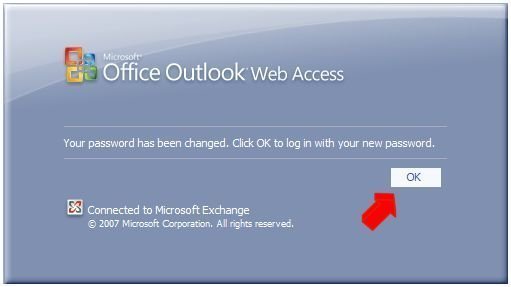
Changing the Microsoft Exchange password will only change the password in the mail server. It will not change the password in the mail client. To receive e-mail, the passwords in the mail server and mail client must match.
To change the mail client’s password, read How do I change my Outlook password?
The Microsoft Exchange password is the same as the Active Directory password. Use this new password when logging onto the computer.
Huizhong Yang
Hi,
I use Apple lap top. I forgot my exchange email password, there is no reset password option, unable to get my email now. Please Help.
panchal nikunj
my facebook id password forgot so plse halp
JohnMiller2013
rofl
Steve
This advice is only good for people on a Windows network. What about people who happen to be connecting remotely to a shared exchange server?