

When surfing the Internet, a problem that can arise for consumers is getting a number of DNS errors or 404 errors in the web browser despite a working Internet connection. If this is the case, then learning how to flush DNS for your computer’s operating system (OS) is key to restoring the proper quality of service for your computer’s web browsing capability. The act of flushing the DNS removes the local resolution for the website name saved or cached on your computer which can result in a slower initial revisit to the webpage; however, it will eliminate browsing errors encountered from the entry being corrupted.
What is DNS?
The Domain Name System (DNS) is a database system which translates the plain language web address or URL into an IP address. The system was created since it’s easier to remember a domain name such as www.tech-faq.com than 123.456.789.10. Typically, every local computer network will have at least one server that handles DNS requests or queries (called a name server) which performs a caching or quick-lookup function to minimize the time it takes to resolve domain look-ups. If the local name server doesn’t have a domain name stored, it will request the identity from the next name server it knows about and so forth.
History of DNS
Before DNS was invented in 1982, the idea of using a name vice a computer host’s numerical address on the network dates to the ARPANET. Prior to 1982, every computer on the network would have a HOSTS.TXT file that would be retrieved from a computer at SRI. The field would map the names to numerical addresses. The hosts file is still in use on modern operating systems to map 127.0.0.1 to the “localhost.” The rapid growth of computer networks; however, made the hand edited hosts file almost unusable. As a result, Paul Mockapetris invented the Domain Name System in 1983 and wrote the first implementation. The original implementation was subsequently published as an IETF standard and has been superseded since that time. The first Unix implementation of DNS was completed in 1984 by Douglas Terry, David Riggle, Mark Painter, and Songnian Zhou referred to as BIND (Berkeley Internet Name Domain) server. BIND would later be ported to Windows NT in the early 1990s.
DNS Cache Poisoning
Similar to other fundamental Internet constructs, the Domain Name System was not originally designed to be secure. DNS cache poisoning is the term used to describe a data integrity or security compromise in DNS. The vulnerability occurs when data gets introduced to DNS cache that did not come from or originate with an authoritative DNS source. This can occur from a malicious attack or from a bad or misconfiguration of DNS cache. Once a DNS server has received the non-authenticated information and caches or saves to the database, it is then considered poisoned when the bad information starts to be supplied to client machines of the server. At the minimum, a poisoned server will send end-users to incorrect websites. During malicious attacks, they may be directed to malicious web pages designed to infect the client computer or pretend to be legitimate websites designed to steal user’s information and/or money.
Preventing DNS Cache Poisoning
Many of the traditional DNS cache poisoning attacks are prevented by making DNS servers trust the information passed to them by other DNS servers less. This is accomplished by ignoring DNS records that are returned to the requesting server not related to the query. The most current version of BIND addresses poisoning attacks in this manner. Additionally, implementing source port randomization for DNS requests (makes requests harder to spoof) along with using cryptographically-secure random numbers to select the source port and nonce significantly reduce the probability of DNS attacks. Secure DNS or DNSSEC is the current initiative being slowly deployed to fully solve the DNS cache poisoning issue by using electronic signatures and public key certificates to validate the authenticity of data.
Common Problems with DNS
There are wide arrays of DNS issues that can arise at the network administrator or power user level. For the end-user; however, the majority of DNS problems arise from either bad configuration entries or the local computer’s DNS storage requiring flushing. Independent of the type of operating system, many home computer users will input the DNS Server for their respective Internet Service Provider (ISP) incorrectly resulting in a failed Internet connection. Each ISP will have a slightly different configuration process; however, the IP address of the DNS server for your home network to use will be provided on registration for service. Many times the ISP will use the address for their actual DNS server, where others it will be the same as the Gateway IP for the service (also the IP address of the router).
How to Flush DNS in Windows Using the Command Prompt
Step 1 – Close all open web browsers and applications on your computer.
Step 2 – Open the Windows command prompt by selecting the “Start” menu and entering “cmd” in the search text field box followed by clicking the “enter” key.
Step 3 – At the command prompt, enter “ipconfig /flushdns” followed by pressing the “enter” key. After a moment, Windows will display a message similar to: “Successfully flushed the DNS Resolver Cache.” Once the message is displayed, the DNS will be flushed removing all incorrect entries.

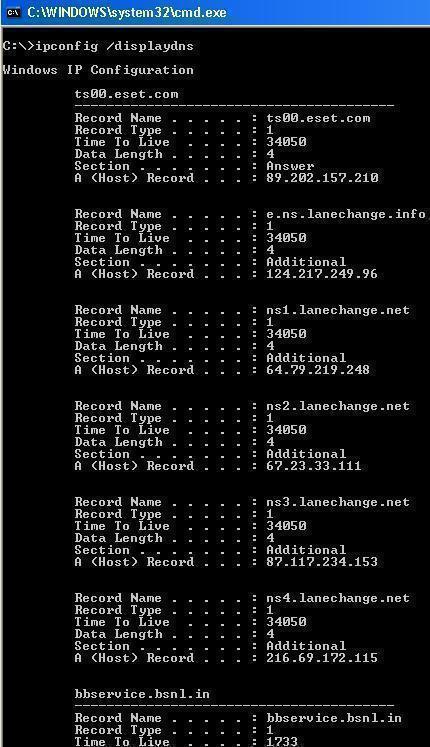
Step 4 – View the DNS resolver cache by entering, “ipconfig /displaydns” at the command prompt followed by clicking the “Enter” key.
How to Turn Off DNS Caching in Windows
If clearing DNS cache does not solve frequent DNS errors on the computer running Microsoft Windows, client-side DNS caching can be disabled. When DNS caching on the client disabled, your computer will still be “usable,” but just not as efficient or “fast” as it is with the service turned on and working properly.
Step 1 – Open the Windows command prompt by selecting the “Start” menu button and entering “cmd” in the search text field followed by pressing the “enter” key on your computer.
Step 2 – Enter “net stop dnscache” or “sc servername stop dnscache” at the command prompt followed by pressing the “enter” key on your computer. DNS caching will be disabled until the next time the computer is restarted or rebooted. In order to make the change permanent, the DNS Client Service will need to be changed to disabled using the Microsoft Service Controller or
Services tool.
Steps to Stop DNS Client Services in Windows Using the Services Tool
Step 1 – Open the Windows command prompt. Then, input services.msc at the command prompt and press the enter key.
Step 2 – Locate the “DNS Client” application and double click the program icon.
Step 3 – Select the “Stop” menu button. Conversely, the application can be restarted in the same location of the services user interface.
Changing DNS Cache Settings in Windows
An alternative method that can be used to modify Windows DNS caching on the client-side is to change two of the registry entries in the registry associated with the service.
Step 1 – Select the “Start” menu button and enter “regedit” in the search text field followed by pressing the “enter” key.
Step 2 – Click the “Edit” and “Find” and enter “DNSCache” or use the menu on the left hand side of the editor to locate: HKEY_LOCAL_MACHINESYSTEM -> CurrentControlSet -> Services -> Dnscache -> Parameters.
Step 3 – The MaxCacheTTL is the maximum amount of time that Windows will cache a DNS lookup. The default value at the time of this writing is 86,400 seconds. You can change this entry to 1 to force windows to clear the cache every second. This can result in a negative performance drop on your computer.
Step 4 – Another registry key setting that can be changed is MaxNegativeCacheTTL which is the maximum amount of time that a failed DNS result will be cached. This is normally set to 900 seconds, but if you change it to 0, Windows will not store failed look-ups.
*Note, the path to the DNS cache registry key will be slightly different based on the version of Windows installed on your computer. Modifying the registry should be done with caution and not by those who lack significant computer experience.
How to Flush DNS in Mac OS X
If you are an Internet or web developer or do a fair amount of administrator tasks on your Mac, then the requirement to flush DNS cache will arise. Depending on what version of the OS is installed on your computer (Leopard vs Tiger), there will be a slightly different command to flush DNS.
Step 1 – If Mozilla Firefox is installed on your computer, exit the application if it is open.
Step 2 – Open the terminal on your computer.
Step 3 – On a computer running Lion (Mac OS X 10.5, 10.6, or 10.7) enter the following command followed by pressing the “return” key:
dscacheutil –flushcache
Step 4 – In Mac OS X 10.4 Tiger, enter the following command followed by pressing the “return” key:
lookupd –flushcache
How to Flush DNS in Linux
In many builds of Linux the nscd daemon is used to manage the client DNS cache. For builds that use this method, restarting the nscd daemon is the primary means to flush DNS cache. Other builds of Linux may run BIND or dnsmasq as the primary name service.
Steps to Flush NSCD DNS Cache
NSCD is used to speed up consecutive access to the same data and improve overall system performance.
Step 1 – Enter “$sudo /etc/init.d/nscd restart and press the “enter” or “return” key.
Step 2 – Once nscd restarts the DNS will be flushed. Alternatively, you can enter “# service nscd restart.”
Steps to Flush DNSMASQ DNS Cache
DNMASQ is used as a lightweight DHCP, TFTP, and DNS server. It was primarily designed to provide DHCP and DNS services to a LAN, accepts DNS queries, and answers them. It is also installed on a number of routers to cache DNS queries or look-ups.
Step 1 – Enter “$ sudo /etc/init.d/dnsmasq restart”
Step 2 – Once dnsmasq restarts the DNS will be flushed.
Steps to Flush BIND Server DNS Cache
Similar to nscd and dnsmasq, to flush DNS cache in BIND simply requires a restart to clear the cache.
Step 1 – Enter “# /etc/init.d/named restart” followed by pressing the “enter” or “return” key.
Step 2 – Once BIND completes restart the DNS will be flushed.
How to Disable Firefox DNS Cache
Unlike other popular web browsers, Firefox runs its own DNS cache separate from the client services on your computer. As a result, if you commonly switch between a VPN, home ISP, or other connections, undesired results may occur if you access services which require use of your VPN, etc. For this reason, when you take actions to fully flush DNS on your computer, FireFox should be closed. If DNS issues persist on your computer and FireFox is your preferred browser, then the answer may lay in disabling DNS Cache in the browser specifically.
Step 1 – Launch Mozilla Firefox on your computer.
Step 2 – Install the Firefox DNS cache plugin.
Step 3 – Right click the “Home” menu button on Firefox and then select the “Customize” menu option.
Step 4 – Locate the “DNS Cache” menu button and then drag it beside the “Home” button on Firefox followed by clicking the “Done” button.
Step 5 – Click the “DNS Cache” menu button whenever you want to have Firefox DNS cache disabled.
Step 6 – Alternatively, you can change the FireFox DNS settings to have the cache expire after 0 seconds. To do so, enter “about:config” in the location bar followed by pressing the “enter” or “return” key. Right click at a blank location on the subsequently displayed record and select “New” and “Integer.”
Step 7 – Enter “network.dnsCacheExpiration” as the preference name with “0” as the integer value. If “network.dnsCacheExpiration” already exists, modify the integer value to “0.” If you want to restore FireFox defaults, simply change the value back to the default of “3600.” With 0 entered, DNS cache in FireFox will automatically expire on your computer.
Video on How to Flush DNS
The following video provides highlights on how to flush DNS in Microsoft Windows, MAC OS X, and Linux.

dutyinthepool
don’t fret boys and geeks ,when the global currency collapse begins, you won’t have to worry about meaningless fu**ing things like DNS or why Bill Gates is such a prick and asshole to have left us up the creek with bugged up paddles year after year , certainly a true Bilderberger,New World Order scum bag ……..I pray he gets caught in this country trying to leave when America begins to melt down, some one recognizes him and forces him to eat the lynx system or turns him over for assimilation into the Borg….right before I get the chance to reconstitute his brain pan into a 9 volt battery
soroush
how can i go to my root on mac via terminal?
H3llas
I am not a mac user but I guess root is disabled on macs. You can try sudo or su commands though…
Stephanie
I have a few related questions I am hoping someone can answer. Does ipconfig/displaydns only work for one session of internet browsing? I noticed that if I go on to my facebook account, and display my DNS, the fb pages are on there, but then if i close firefox completely, and open a new page, and display the dns, the previous information is gone (doesn’t show that I was on fb at all). Also, I can have my browser page open to youtube, do a display dns, and youtube doesn’t show up at all. Quite confused!
WillSpencer
ipconfig /displaydns shows you the current contents of the DNS cache.
The cache only stores DNS entries which your PC has accessed recently.
Cache entries are dropped regularly so as to prevent “stale” DNS information from causing connectivity issues.
Callay Jayco
I got the Successfully flushed the dns cache but when I tried the ipconfig/displaydns I got
“could not display the DNS Resolver Cache?
Abdulqader Kapadia
This error message is usually shown if the DNS Client service isn’t running on your computer.
You will need to start the DNS Client service.
1. Go to Run, type services.msc and hit Enter.
2. Search for the DNS Client service.
3. Double-click the service and click Start.
otap
said not recognized as a command I even copy it with the qoution marks and without.
Ajay Khule
Hi,
Try running command prompt as administrator. Right click CMD.exe, in context menu select “Run as administrator” and then try your commands.
PsX
Step 1 – If Mozilla Firefox is installed on your computer, exit the application if it is open.
– Haha, I immediately did this, not even thinking about what the next step would be.
Justin
I am trying to flush my DNS but cant it tell me when i put in ipconfig /flushdns i get a message saying, The requested operation requires Evaluation.
Please help
phpJoel
Requires Escalation?
Instead of just clicking on CMD.exe, right-click it and Run As Administrator.
Duncan
Worked like a charm!! Many thanks!
kevin
hi ok i type the ipconfig /flush dns and then nothing happans, if i click enter it just goes onto the next one, what am i suppose to od?
Pebkac
make sure you are typing the command in correctly with the spaces in the proper places: “ipconfig /flushdns” (without the quotations) 🙂 this has bit me in the bum many times
Gary
I tried a dns flush on me windows vista and it said it needed to be elevated
Marlon Franco
I guess, it has something to do with your admin privileges. Make sure you’re using an admin account.
Lazizo
Is this going to make the site work when we try to open it ??
frustrated
Just what I was looking for — Thanks for the info
Elisabeth Koch
You say, “you can use the command dscacheutil -flushcache to flush the DNS ” but how do I use that…????!. Need step-by-step please! And pushing Command on its on does nothing.I’m on a Mac 10.5.8.
memenode
You need to type that into a terminal and press enter. To launch the terminal press command-space and type “terminal” (without quotations) to find it, and press enter. You can also find it in Applications > Utilities (from the dock).
Elisabeth Koch
Thank you so much for the QUICK reply! But I’ve tried a few things and get…
localhost:~ mac$ bash-2.05a$ dscacheutil -flushcache
-bash: bash-2.05a$: command not found
localhost:~ mac$ dscacheutil
Usage: dscacheutil -h
dscacheutil -q category [-a key value]
dscacheutil -cachedump [-buckets] [-entries [category]]
dscacheutil -configuration
dscacheutil -flushcache
dscacheutil -statistics
localhost:~ mac$ dscacheutil -flushcache
localhost:~ mac$ dscacheutil -flushcache
localhost:~ mac$ bash-2.05a$ dscacheutil -flushcache
-bash: bash-2.05a$: command not found
localhost:~ mac$ lookupd -flushcache
-bash: lookupd: command not found
localhost:~ mac$
…”command not found” – what am I doing wrong? THANK YOU!
memenode
You already did it. 🙂 It doesn’t actually display a message of any kind when it works. When you typed “dscacheutil -flushcache” and it just went into a new line without response that’s when it ran the command successfully. This is how many commands in UNIX (and Linux) systems behave, for better or worse. There’s a problem only if it displays an error.
It said not found the first time because you typed in “bash-2.05a$” which shouldn’t be typed in.
Elisabeth Koch
Ahhhh! Thank you so much! I was wondering if that was the case 🙂 Great. Many thanks again.
redvelvet
When I flush my dns it says that it does so successfully. Then when I display it there are still items remaining using xp, what could be causing it not to work?
memenode
It might immediately start to fill up as soon as you access anything online (because that requires DNS resolving).
erik
This same thing happens to me. it appears to not be flushing correctly. The same sites remain there after flushing and it says that the flushing is successful. CCleaner doesn’t fix this.
StuartLondon
I edit some of my firm’s webpages and when checking my edits I need to ensure I am viewing the most recent version of the page and of the links it contains. Setting the cache to flush automatically after say 10 seconds could be useful. However, I cannot find the MaxCache parameter in the location you specify in my Windows 7 registry. Does it need to be added manually? If so, can you tell me how to do it, so I can give it a try?
Many thanks, Stu
memenode
You can stop DNS caching for the current session by running “net stop dnscache” on the command prompt or disable it permanently by running Services.msc (Start > Run), and right clicking on the “DNS Client” and clicking Stop.
Microsoft Support has detailed instructions for the registry, along with how to add your own.
onoz0r
/flushdns dont work for me. i get message saying i dont have permission to do this. weird thing is that i am not even in a network with restrictions. and my pc only has 1 account (administrator). what do i do?
memenode
I would still try a suggestion from this comment. I’m not 100% sure, but even if you’re running a single account on Windows (at least Vista and 7) it wont run everything with elevated privileges automatically.
ipconfig /flushdns
Worked perfectly for me. Thanks for the info.
Elliot Kiang
whoah this weblog is great i like reading your posts. Keep up the great work! You know, many individuals are looking around for this information, you could aid them greatly.
clivesj
I flushed my DNS on my laptop. Then I stopped the DNS server on services.msc but still my browser is pointing to the old location of my website 4 hours ago. When I check my domain using several check dns tools, the domain seems to resolve to the proper (new) ip-location.
If if manually edit the hosts file I can have the browser to the new location.
So it seems it is a local cache problem? Thanks for your time
WebPro
you need to restat you vrowser
tarik
i got vista and its say flushdns isnt recognize like a an internall or extanal command, then somthing with path or bath file
memenode
Your Windows can’t find the command, probably looking for it in the wrong place. You need to set the right path to the command.
Try running this before you run the ipconfig command:
path c:\winnt\systems32
richard
pathh not found
BINIT
LINUX
To restart the nscd daemon, type /etc/rc.d/init.d/nscd restart in your terminal
Terrys
In Ubuntu [maverick meercat] the equivalent seems to be /etc/init.d/dns-clean. Funny though – this shouldn’t have _been_ in my dns cache;-)
Oristo
same in linux mint – /etc/init.d/dns-clean thx Oristo
thx
Oristo
microadam
Hey, this also works with Natty Narwhal (11.04)!
Thanks a lot 😀
skkermalli
My laptop runs on windows vista and i keep trying to flush it but it keeps telling me that request needs elevation. I dont really know what that means so i dont know what to do.
memenode
That usually means you need to run the program as an administrator, with “elevated privileges”. Try running the command prompt as an administrator and then put in the required commands. You can do that by going to the Start/Windows menu > All Programs > Accessories and then right click on the “Command Prompt” and click “Run as administrator”.
Daniel Memenode
Originally posted by Prithviraj Shankar: “My Laptop runs on Windows XP. I tried what you suggested, and got the response: “Could not resolve the DNS Resolver Cache: Function failed during execution”. What now?”
This Microsoft Support page should help.
Prithviraj Shankar
My Laptop runs on Windows XP. I tried what you suggested, and got the response: “Could not resolve the DNS Resolver Cache: Function failed during execution”. What now?
kim
i was told to delete java then load back…www.java.com to download i did it and it fixed my problem..this came from zynga
franc
dscacheutil -flushcache worked with me only when switching before to root user (su).
cpuwhiz22
Actually, DNS caching is persistent on many distributions, so restarting nscd will not flush the cache. Instead use “nscd -i hosts”.
Daniel Memenode
Which Linux distro are you using? It could be /etc/rc.d/nscd restart.
hilongos
I tried it but init.d seems not found