

Formatting a hard drive often becomes necessary when Trojans or viruses that are difficult to remove infect it or when there are bad sectors on it.
A hard drive should be divided into small partitions to utilize the space effectively. A hard drive can also be formatted in order to reorganize the space available.
Remember, formatting the hard drive or any of its partitions will completely erase all data. This article gives the steps to correctly go about the formatting exercise.
Reformatting a Hard Drive with the Windows Installation Disk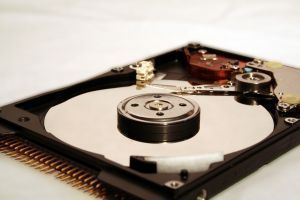
- First and foremost, backup all the data from the hard drive partitions to be formatted. For example, users may want to backup their ‘Documents and Settings’ folder so that they can use it on a new Windows installation. Also remember to backup other important items like the Internet browser bookmarks.
- Restart the PC and enter the BIOS setup by pressing the ‘Delete’ key. Once in the setup, ensure that the boot configuration is set to allow the CD/DVD drive to boot first.
- Insert the Windows installation disk in the drive and then exit the setup after saving the changes.
- As the machine restarts, the user will be prompted to press any key to boot from the disk. It is important to boot from the disk because the system partition cannot be formatted from the operating system itself.
- The Windows installation screen should take the user through several steps before he/she is allowed to format an existing drive.
- Reformat existing partitions, delete existing partitions, or create new partitions in unpartitioned space. Choose the required amount of space by specifying a number denoting the formatted area in megabytes.
- Choose NTFS or FAT32 for formatting. NTFS drives are faster, superior, and more secure.
Reformatting a Hard Drive with Computer Management
The steps given below will help users format a non-system drive on the hard disk. These steps are not applicable for formatting the system drive, which is the C: drive on most computers.
- Search for the My Computer icon, right click it, and select Manage from the options that appear.
- A new window named Computer Management will pop up on the screen. Select Storage from the options available on the left side, then choose “Disk Management (local)” from the options that appear in the window.
- A list of all the available partitions on the hard disk will appear.
- Delete the desired partition from the hard drive. To remove all the partitions, delete them one by one. Right click the partition’s box and select Delete Partition from the options. Click “Yes” to confirm the deletion.
- A box that reads Unallocated will appear. Right click the box then select New Partition from the options.
- After the New Partition Wizard appears, step through the wizard and choose the Primary Partition, then choose the appropriate size and drive letter. Finally, the wizard will ask if the new partition should be formatted. Choose between FAT32 and NTFS, the latter being a superior option.
- Leave the Allocation Unit Size to default and enter the drive letter in the Volume Label field. If sure that the drive has no problems, check “Perform a Quick Format,” otherwise leave it unchecked. Also, leave the Enable File and Folder Compression unchecked and click Next to format the drive.
- The wizard will now start formatting the drive. While it is formatting the drive, do not close the Computer Management window.
- The formatting is complete when the status changes to ‘Healthy’ from ‘Formatting.’ The user can now use the newly formatted drive to store data.
Reformatting a Hard Drive via the Command Line
Reformat sections of the hard drive via the command window. Type ‘format’ at the command line, then the drive name. For example, if you want to format the D drive, type <format D:>.
To do a quick format on a particular drive, pass the Q parameter as well, for example, <format D: /Q>
Al Magnotta
I recently purchased a new computer with Windows 7 as the mother board on my XP died:the hard drive is OK. Transferring to the new computer was incomplete with the majority of the programs not crossing over.
How can I use the old hard drive as an external drive without loss of programs? I have purchased an enclosure for the drive but instructions state that the drive needs to be formatted.Is this absolutely necessary or can it be used as is like a thumb drive via a usb port?
Thanks for any suggestions.
Al
ironman
Trying to reformat hard drive,i have xp. Everytime i reboot i get file\i386\halacpi.dll could not be loaded. The error code is 7.Setup cannot continue.Please help.
just me
when I put my drive in it says it need formatting
I have a LOT of impotant files on there
Is there anyway that I could skip this step and open the drive (it wont let me)
Pierre
Hello,
I’m creating a windows application for windows XP embedded. I would like to format a drive (say D:) from inside the application (located on c:) but I’m not able to use the command Format d: without prompting. I tried many solutions with no success (.bat file with command format d: /FS:NTFS /V:Data /x, or event Process.Start(…))
Thanks in advanced for your kind help.
Pierre
ps: I’m using .net 2.0 with C#