

Windows Live Hotmail is a free email service provided by the Microsoft Corporation. The service was previously titled “MSN Hotmail” but has primarily been referred to as “Hotmail” by society. The service was one of the first web email services being launched in July of 1996 and purchased by Microsoft in 1997. Windows Live Hotmail was launched worldwide in 2007. Windows Live Hotmail has more than 350 million world-wide users, supports more than 35 languages, and surpasses both Yahoo!Mail and Gmail it total use in the Webmail industry. A common task that arises for consumers that use the service is determining how to change a Hotmail password to adhere to good security practices or if the password has been forgotten.
Hotmail Features
Windows Live Hotmail uses Ajax programming and supports all major Internet browsers to include Mozilla Firefox, Safari, Google Chrome, and Internet Explorer. The service includes keyboard controls, message filters, folder-based organization of messages, auto-completion of email addresses, import and export of contacts, spam filtering, virus scanning, rich text, and multiple languages. Unique Hotmail features include Active view, Microsoft Office Web Apps integration, conversation threading, sweep (allows large scale deletion or email moving to folders), quick views, aliases, categories, and instant actions. The instant action features allow users to predefine tasks such as moving, sweeping, deleting, or flagging messages to minimize the steps required to clean-up an email account. The free version of Hotmail displays ads which can be removed by subscribing to the premium Hotmail service. Both variants of Hotmail feature unlimited storage which starts out at 25 GB (free service) and 50 GB respectfully and are increased based on demand.
How Does Hotmail Work?
To obtain a Hotmail account, you must visit signup.live.com and complete the registration form. At signup, users can select between a @hotmail.com or @live.com email address which also severs as a Windows Live ID that is used to access other Windows Live services. This email address along with the password entered at registration is used to access Hotmail from any computer that has an active Internet connection without having to download to the client computer. Hotmail now supports POP3 which permits use with email client software such as Microsoft Outlook or Thunderbird based on individual preferences. Windows Live Mail is now able to automatically detect the POP3 configuration requirements for valid Hotmail or Live.com accounts on client computers. Once the account is configured, Hotmail functions similar to other webmail providers with new email displaying in bold and messages opening “on click.” Creating new email, replying, or forwarding are all accomplished by clicking the respective menu button in the Hotmail interface. The Hotmail client supports HTML or rich text format and does not display email headers to the end-user (the IP address and other technical requirements to actually deliver or receive an email by the email servers) on default. Hotmail makes heavy use of filters to help users control email flow to accounts, and also lets the Hotmail appearance be modified through the use of themes. Finally, since Hotmail now features full Windows Live Integration, full access to SkyDrive and Messenger are provided by selection the applications from the top-level menu.
What Constitutes a Strong Hotmail Password?
Creating a strong Hotmail password is key to having a safe experience on the Internet. Keys to creating a strong password are the length and complexity of the password. An ideal one will be long and include symbols, numbers, letters, and punctuation and consist of eight or more characters. Additionally, the password used for a Hotmail account should not be used on other websites. A common tactic of Cybercriminals is to steal usernames and/or passwords on websites that have lax security and then attempt to use the same information on accessing Hotmail, bank accounts, and credit websites. Finally, Hotmail passwords should be changed on average at least every 90 days if not more frequently. Microsoft provides a free password checker utility that can be used to evaluate a Hotmail password’s strength automatically.
What Are the Dangers of a Weak Hotmail Password?
In the worst case, a weak Hotmail password can be cracked by nefarious personnel and be used to steal your identity and gain access to other personal or financial accounts. In the best case, it can be used to send emails on an individual’s behalf that may not be desirable and result in a significant annoyance. Cyber criminals have been found to use sophisticated tools that can crack passwords created from dictionary words found in any language, words spelled backwards, abbreviations, and look for keyboard sequences or repeated characters. In targeted cracking attacks, Cyber crooks will make use of personal information to include your name, driver’s license number, passport information, birthday, and Mother’s maiden name to either crack your password or attempt to gain access through fake password reset attempts.
Why Do Cybercriminals Crack Email Passwords?
Cyber criminals make a living on stealing personal information that can be used for monetary gain. In today’s digital age, one of the first steps in this process is gaining access to the legitimate email address and password of computer users. Typically they will use social networking sites to obtain various pieces of personal information that can be used to crack weak Hotmail and other email account passwords. Once access to the email account is gained, the criminal or hacker can then proceed to use the information collected from social networking accounts to seed password cracking software to hack into a user’s account. Once access is gained using a variation of brute force, dictionary, or hybrid cracking methods, the criminal can then access additional confidential information to either send out spam or gain access to various external websites to include banking, credit cards, or even start new accounts. Many times a hacker will even use this access to change the email address associated with these types of critical accounts so that the person having their access stolen doesn’t realize the theft has occurred for a longer period of time.
How Do Hackers Steal Personal Information Sent in Email?
Unfortunately, the majority of email users do not make use of any type of encrypted email plug-in or support application. As a result, if email passwords or other personal information that can be used to help hackers seed a password cracking program are sent in an email, it can be used to gain access to an individual’s Hotmail account. This is due to the fundamentally unsecure nature of email. When an email is sent, the information contained in the email is not encrypted. If a hacker employs a packet sniffer on a network, he or she can record all email traffic that is transmitted across the point the email travels. This information can be harvested and analyzed for passwords and other sensitive information in a passive manner without the knowledge of the person or people who send the email. As a result, an individual can have an extremely long or strong password and still be susceptible to having their Hotmail or other email password or login stolen.
How Do Criminals Use Keyloggers?
A keylogger is a potentially malicious program that is designed to capture all keystrokes and/or screen shots of specified applications or websites that are loaded or typed on a computer. These programs then send the captured information back to a remote server or hacker to be used to gain access to the private information of the end-user. Keyloggers are commonly deployed as the payload of a Trojan horse on an end-user’s computer. In recent years, these have been most commonly deployed through infected MP3, image, or movie files through free file sharing websites. Many times when a new keylogger is developed, it may not be detected by antivirus software for a period of weeks or months until it has been detected and added to the virus signatures of major antivirus developers. The best countermeasure that Hotmail users can employ against keyloggers besides keeping up-to-date antivirus software loaded on their home and work computers is to adhere to the Microsoft recommended policy of routinely changing their Hotmail and other account passwords.
How to Change a Hotmail Password?
As stated, Microsoft’s security department recommends Windows Live or Hotmail passwords be changed at intervals of no more than 90 days. When you change the password for a Hotmail account, it will change the password for all of the Windows Live services.
Step 1 – Launch your computer’s web browser and then enter the Windows Live Hotmail login URL into the browser’s address bar.
Step 2 – Select the name located at the upper right-hand corner of the Hotmail (Windows Live) homepage.
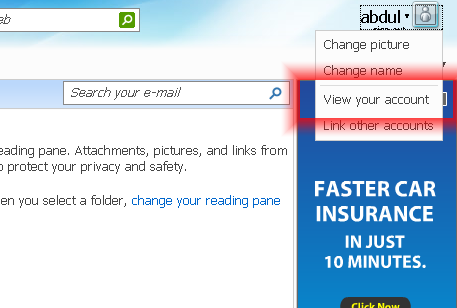
Step 3 – When a list pops up, choose the Hotmail account.
Step 4 – Choose your account and if asked to log-in again, enter your current password. Then, click the “Sign In” menu option.
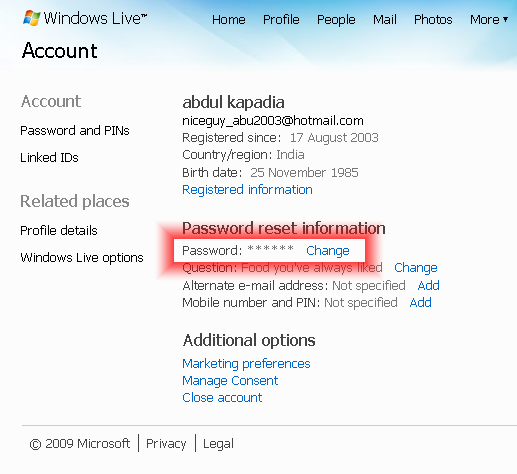
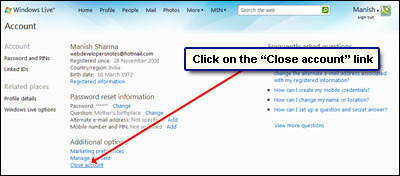
Step 5 – Select the “Change” menu option located beneath the password reset information heading.
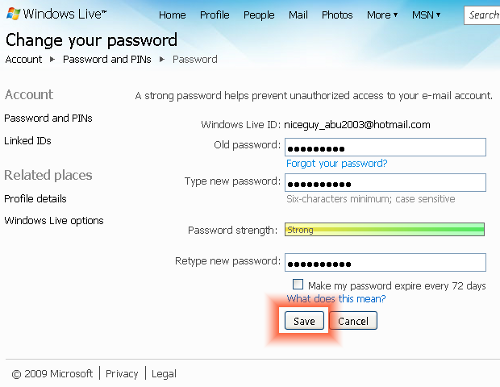
Step 6 – Enter your old password and then input a new password in the appropriate text field on the subsequently displayed dialog box. You will have to confirm the input in a separate input box.
Step 7 – Select the “Save” menu button to save your new password. You will then be returned to the Windows Live log-in page.
Step 8 – Log-in to Hotmail with your new password.
Steps to Recover a Forgotten Hotmail Password
One of the common traits with modern web browsers is that they allow the end-user to cache or save passwords to commonly used sites such as the Windows Live or Hotmail log-in page. Unfortunately, when someone creates a strong password for their Hotmail account and then relies on this feature to save their password it can be forgotten. Whether due to the over-reliance of the web browser cache, or just having a bad memory; another common task for Hotmail users to recovering a forgotten Hotmail password.
Step 1 – Launch your computer’s web browser and load the Windows Live log-in page.
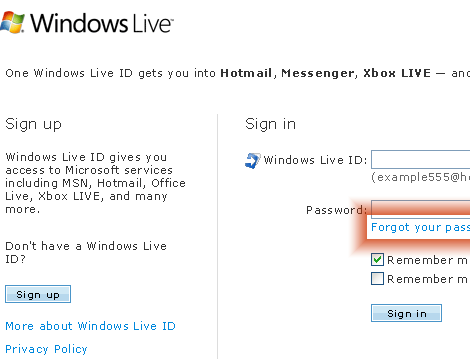
Step 2 – Select the “Forgot your password” link that is located beneath the password text field on the Windows Live log-in screen.
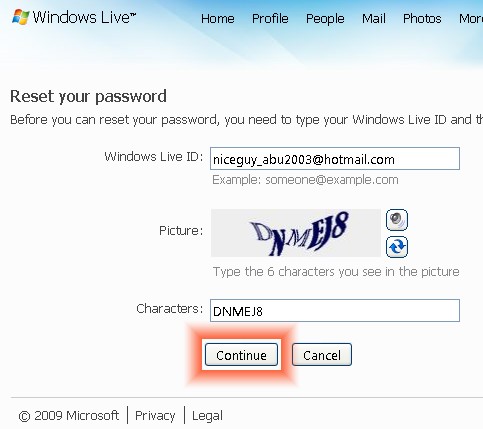
Step 3 – Input your alternative email address and then enter the characters located on the captcha (or pictures) on the page subsequently displayed. This is to prove to Hotmail that you are not a bot or other computer program. Press the “Continue” menu button.
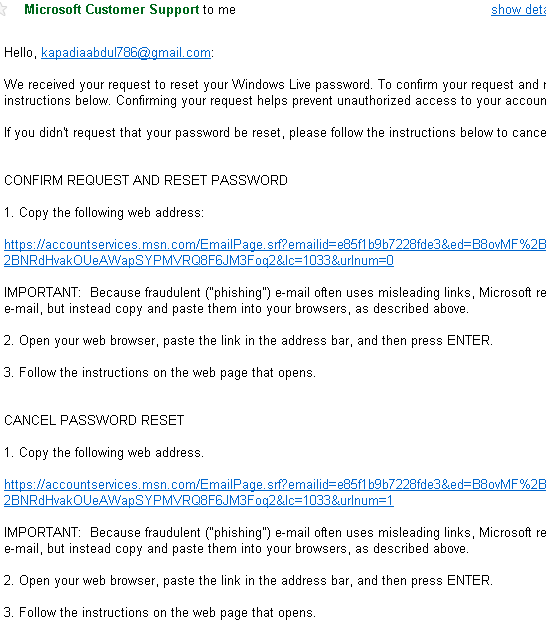
Step 4 – Microsoft will then email the password changing procedure details to you alternate email address.
Step 5 – Click the link in the newly received email from Hotmail/Microsoft labeled as “Confirm request and reset password.”
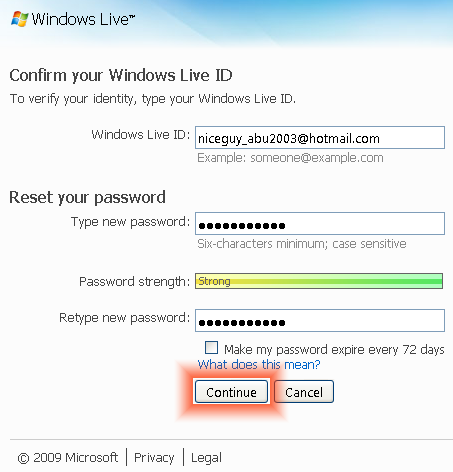
Step 6 – On the subsequently displayed page, input your Hotmail ID. Then, enter the new password along with a confirmation entry followed by clicking the “Continue” button. You will then be directed to the Windows Live log-in screen.
Step 7 – Continue with logging into Windows Live Mail with your new password.
How to Protect Your Hotmail Password Offline
One of the oldest phishing techniques that has existed for longer Hotmail than has is offline phishing or social engineering. It’s no secret that Hotmail and many other online accounts rely on a secret question or series of secret questions to allow a person to reset their Hotmail or other account password(s). A very common method used amongst teens, college students, and even grown adults is to work the security question(s) into casual conversation with the targeted person in a nonchalant manner. Chances are that eventually the person will state or give up the answer in some fashion without realizing they are being targeted for email and potentially identity theft. Once the information has been provided, the phisher or hacker can then change the password without the targeted people’s knowledge until significant damage can be accomplished. The best way to defend against this manner of off-line attack is to be very aware of what type of information that you use for your security questions on Hotmail and other accounts and avoid providing this data to anyone. This includes those that appear trustful or that you think would not try to harm you.
katy
some on help i forgot my hotmail password. i tryed it so many times now its blocked 🙁 how do i unblock it?
joseph Ayam
i want to change mypassword
Ajay Khule
Hi Joseph,
In order to change your password follow a quick procedure as follows:
1. Log in to your Hotmail mail account.
2. Click the Options button (at the right hand side)
3. Click More Options
4. In the Manage your Account Settings, click View and edit your personal information.
5. At this stage you might be prompted to authenticate yourself by supplying your current password.
6. Click the Change link at the right hand side of your password.
7. Enter your current password, you will have to confirm the input in a separate input box.
8. Click Save.
Done!
Wosilat kikelomo Gbadamosi
Hi sir or ma, i am so sorry i forgot my password. am a learner how to use computer and email, since then i could only received message fr my blackberry phone. but i want to get in to my Hotmail on line so that i can retrieve my messages and my document in there please so i will need your help. since the day i changed my old password i have forgotten the new one i have just put in please i need your help. i didn’t write the security question down when i opened my Hotmail that was my problem now. please i need your help.
ravindra kumar
with known password to recover present changed password using movile phone number to open my email account and access by another person is a crime and can be reported against such act.
ravindra kumar
with known password to recover present changed password using movile phone number to open email account to access is a cyber crime ?
ravindra kumar
with known password to recover present changed password to open email account for access is a cyber crime ?
syed arjumad ali
My email account blocked due to security, please open my account with new password. Thanks.
Mary MacInnis
Thank you for your help, I want to change my password for security reasons, I’ve ahd it for 5 years old.
Mary MacInnis
Hello, I would like to change my password, could we continue.
Thank you
paeraw
aran2012
Mary MacInnis
Yes, pleasen continue
Mary MacInnis
I would like to change my password, please advise
Paul Bridges
I need to change my hotmail password.
hakim akhatar
Anaibib
Hello,
I want to disable “make my passwork expire every 72 days” because when the time expire I change passwork and I don’t check that box then, the system don’t let me save my new passwork until I checked again.
oliver
At first I copied all of the irrelevant garbage in the above article into this comment and I got a message
“This comment seems a bit spammy, we’re not real big on spam around here”
You are funny, That is exactly my point. The blog post has 1349 words (two and three quarters pages) before you get to the purpose of the post which is how do I change my password?
As a hotmail account owner for over 15 years it matters not to me (indeed to anyone) that the title of the program provided by the company name was created in 1996, and 1300 other useless words.
Turley Thornton
please help me. thank you.
Turley Thornton
I have had the hotmail acct almost 20 years. Please help me to verify the acct so i can access it. I think you have record of my phone numbers, etc. thank you.
Raman Malaysia
thanks for your kind information, one who do not know -how to change the password in hotmail, your guidance is very good to utilize. thank you very much for your effort you had taken for the sake of public, thanks.
bhavesh shah
I thik someone know my passward.
halona
some one use my email
LilaGurung
why I could not recovery my hotmail address ? I had done reset too. Could you please give me steps.
Lila Gurung
Kenny
Hehe, when I try to change my password, it’ll say that it’ll email the password reset verification to another email, and it censors out half of it.
What if I have no idea what that other email is?
lol i’m stupid
Mark
Hi there, forgot my password and I am trying to reset it using the instructions you have provided. I’m having a very irritating problem which is hotmail said that they ‘sent a link to reset your password to the following email addresses’ –> ke*****@ukskate.org.uk … I don’t know what to do with this email address or how to even access it, please help me asap 🙁
Catrina perez
Plz help me fix email
Marlon Franco
What about it? Password issue? Did you not follow the instructions in the article? Please provide more info about this.
ssiew tan
Why my hotmail account and password cannot open??
rajinder singh gill
change password
Omar
Mmm.. it worked perfectly fine with me, it took me barley 5 mintues. Thanks a lot m8 🙂
vinod patil
how to unblocked my hotmail accont
tom
Thanks alot……
Aurore Hiscott
my problem is there’s some one else using the same hot mail name as me! I have received some e-mail from that ‘name’… total stranger… and I’ve managed to have it blocked. Now, I want to get on Twitter and it tells me this e-mail name is not available!
What do you suggest?
memenode
That shouldn’t be possible. No two people should have the same email address. If this really is the case I suggest contacting Hotmail support. Meanwhile or otherwise just open a different account.
marycrause
please tell me simply how to change my hotmail password free thanks
Tim
If you get your account hacked like I did, changing your password MIGHT help. So, I appreciated getting this advice on how to change the password!
elaria
hey thanks for the instructions,it was very easy to follow.But it was a bit different and easier i just had to click the arrow on the right and click account and then it said all your information and next to them it said change.i changed my password and it is very strong thanks anyway it helped 😉
sickhotmailuser
Hotmail had the worst GUI, Is the most buggy and slow down the whole PC. Everytime the MSN programmer update hotmail they make it worst than ever before. I supposed all those reject, buggy and defective programmer from Microsoft end up in MSN.
Daniel Memenode
Originally posted by fshost: “I forgot my password for my hotmail account, and following these instructions, it says it sent the reset instructions to my email – at hotmail, which is what I can’t get into in the first place. I signed up with hotmail before it got merged into windows live, so I assume that it is using the hotmail address as if it is a secondary account.”
Try this: https://windowslivehelp.com/PasswordReset.aspx
fshost
I forgot my password for my hotmail account, and following these instructions, it says it sent the reset instructions to my email – at hotmail, which is what I can’t get into in the first place. I signed up with hotmail before it got merged into windows live, so I assume that it is using the hotmail address as if it is a secondary account.
tony89
thanks very easy to follow
Elisheva
Thank you! What is wrong with Microsoft?! I tried changing my password through the personal information/profile – all it did was reload the page 50 times and sign me out!
Are they scared that I would reach the right page and notice that there is also an option to cancel my account? To tell you, after 15 minutes of yelling at my computer I came very close to doing just that.
Thank god for gmail.
Simon B
I spent AGES trying to find the password change option and failed, and I’m a systems analyst. Microsoft shouldn’t be making something so simple so hard to find!! THANK YOU for this, very simple, yet not where I was looking. I would never have thought to click on my hotmail name to bring up a hidden menu (well done microsoft!!). So thanks tech-faq, your instructions were spot on 🙂
another hotmail user
It takes 10 minutes to find the account management if you don’t know where to look.
The UI designer should be shot.
reza
thanks soo much the information was really help full many thanks again